Tuesday, January 13, 2009
Gems Popping Up
Oh, those gems! Not only are they cool, but the are valuable because you can cash them in for Rocket Points. Now we've made it even more fun to collect gems. When you are hanging out in any room, you may see a gem pop up in a random location on the screen. The first user to click on the gem will get it. So keep your eyes open, mouse finger ready, and click on those gems!


Super Chat
 We've made a number of really cool improvements to RocketOn chat.
At your request, we've implemented a chat log which records all of the public chat in a room. If you miss a comment from your friend, you can now scroll through the log to see what they've said. You can open the log at any time by clicking on the chat log icon in the nav bar.
To make it easier to tell people apart when chatting, we've color coded the user  names that appear in the chat dialog box, so you can easily tell if the person chatting is a friend or not.
 names that appear in the chat dialog box, so you can easily tell if the person chatting is a friend or not.
Tuesday, December 2, 2008
Experience Points and Leveling Up
The more you use RocketOn, the more things you can get - and that's where experience points come in. You gain experience points by simply using the system - chatting, playing games, hanging out, etc. The more experience points you have, the higher you climb in level. There are lots of cool avatars and other objects that are only available as you level up - so if you want that cool horse or motorcycle avatar, get in and play now!
Level Experience Points:
level 1 = 1,000 exp.
level 2 = 3,000 exp.
level 3 = 6,000 exp.
level 4 = 10,000 exp.
level 5 = 15,000 exp.
level 6 = 21,000 exp.
level 7 = 28,000 exp.
level 8 = 36,000 exp.
level 9 = 45,000 exp.
level 10 = 55,000 exp.
Level Experience Points:
level 1 = 1,000 exp.
level 2 = 3,000 exp.
level 3 = 6,000 exp.
level 4 = 10,000 exp.
level 5 = 15,000 exp.
level 6 = 21,000 exp.
level 7 = 28,000 exp.
level 8 = 36,000 exp.
level 9 = 45,000 exp.
level 10 = 55,000 exp.
Monday, October 6, 2008
Click-Through
Introducing the New Click-Through!
At RocketOn, we love the web. We love browsing, and we do it all day, every day, twenty-six hours a day, eight days a week. That’s how much we love the web. We also love having RocketOn open and the ability to bring our avatars along to play and chat throughout the day. Which is why we’ve improved Click-Through, and made it easier to use and more robust.
What is Click-Through?
 If you’re new to RocketOn, Click-Through is the ability to click on links, expandable menus, text entry fields, and other interactive elements of pages while you have RocketOn fully open and your avatar walking about. Normally, while you have RocketOn open, you’ll be able to walk anywhere you click. With Click-Through, you can click on links as well! You can also click on buttons and text fields.
 For example, on Google if you click in the search field, you'll be able to type in a word you want to search for and then press enter or Click-Through on the "Google Search" button. Depending on which browser you’re using, your mouse pointer will change into a hand or text-cursor, but if it doesn’t, there is no need to worry. Your regular pointer will still Click-Through just fine, and you’ll be able to type, check boxes, and select things from drop down menus as normal.
Getting Click-Through to Work:
There are some very limited cases where Click-Through may have problems with the content of a particular website, such as expanding menus. Usually if you wait just a moment, these problems will clear up and you’ll be able to Click-Through normally.
We're constantly improving Click-Through and increasing its compatibility with all the different kinds of features and content, but if something doesn't work, just minimize RocketOn (click on the rocket logo in the lower left-hand corner of your screen) and then click on whatever you wanted to click on. You can open RocketOn again (just click the Rocket Icon) and continue to use RocketOn normally.
How do I get Click-Through?
If you downloaded the full version of RocketOn (which is free!) then you already have it. Just try clicking on links using the technique described above. If you're using the demo-version, you can get click-through by downloading the full version of RocketOn.
-Silent Ellipsis & Max
Friday, September 19, 2008
Talk Like a Pirate Day!

Ahoy mateys! This be "talk like a pirate day," where ev'ry last one of ye be encouraged to talk like a brethren of the coast!
If yer friends don't keep in t' spirit o' t' holiday, ye can prank 'em wit' our Pirate Boat an' Pirate Flag pranks, an' ev'ry word out o' der mouths will become more appealin' to t' ears o' a brethren of the coast!
So be sure to stop by yer nearest RocketOn Store an' gather ye up a bounty of pranks. A grog-filled talk like a brethren o' t' coast day to ye!
-Silent "Landlubber Stabbin" Ellipsis
Wednesday, September 10, 2008
Personal Rooms
We've just added a slew of new features, so to help you get the most out of them, we're starting the New Features series on the RocketOn blog. The first item on the menu is: Personal Rooms.
What is a personal room?
Whenever you're using RocketOn, you're in a room. The room you're in determines which other users, and sometimes what kinds of RocketOn objects you'll see, so even if you and your friend are both on www.google.com, you might not see them because they're in a different room (if so, a signpost will pop up that you can click on to go to the next room on the same site).
Personal rooms are rooms created and owned by users. You can control who can enter the room and customize it with photos, blurbs, and more! Personal rooms are places you can express yourself, or places to meet up with and hang out with your friends without being overwhelmed by the number of users in public rooms.
How do I go to someone's personal room?
To visit someone's personal room, you can either go to their profile or search for them using the new Find People tool. You'll see a button that says my rooms on their profile, or view rooms in the search box. Click on this to bring up a list of their rooms, then just pick one and go. When you're in someone else's personal room, you'll see a box in the corner of the screen with buttons to leave the room, report the user (if their room contains offensive material), or to check out their profile (a fast way to get back to their personal room list).
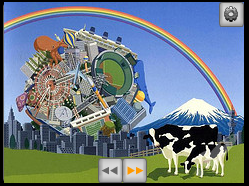 While you're in someone else's personal room, you can see and interact with all of the room objects they've added. You can play the youtube videos they've added, listen to the radio station on their radio, or click through their flickr photos if they've added that setting.
Hold your mouse over the object and clickable buttons, like the arrows here, may show up.
How do I create a personal room?
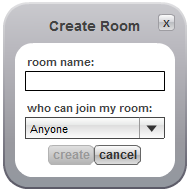
Creating a personal room is easy. Go to your profile and you'll see a my rooms button. Click on it and it will bring up a list of your personal rooms. Now you'll see a create button - click on it to bring up the room creation menu. Here you can name your room and set who can join the room. Once you're ready, click create and you'll be taken to your new personal room.
 Once you've created the room, you'll see a box in the corner that shows you a variety of objects you can add to your room to make it your own. Click on one of the objects to add it to your room.
All of the objects have similar controls. You can drag the object around the screen and put it wherever you want. If you click the options button, you'll be able to customize the object (for example, you need to go to options to add a url for any youtube video you want to have on your page).
When you're happy with your object, click save and the object will be placed with its current settings. You can later move or modify any object in your room by clicking on the gear button in the corner (such as in the cow picture above). You'll be able to move the object around or click options again, and can save the object with its new settings. If you change your mind while editing the object, and want it to go back to the way it was, then don't click save - instead click the gear button again, and the object will go back to the way it was before you started editing it.
Now you know everything you need to start exploring personal rooms. Go try it out for yourself and make a room that you can show off to all your friends!
-Silent Ellipsis
What is a personal room?
Whenever you're using RocketOn, you're in a room. The room you're in determines which other users, and sometimes what kinds of RocketOn objects you'll see, so even if you and your friend are both on www.google.com, you might not see them because they're in a different room (if so, a signpost will pop up that you can click on to go to the next room on the same site).
Personal rooms are rooms created and owned by users. You can control who can enter the room and customize it with photos, blurbs, and more! Personal rooms are places you can express yourself, or places to meet up with and hang out with your friends without being overwhelmed by the number of users in public rooms.
How do I go to someone's personal room?
To visit someone's personal room, you can either go to their profile or search for them using the new Find People tool. You'll see a button that says my rooms on their profile, or view rooms in the search box. Click on this to bring up a list of their rooms, then just pick one and go. When you're in someone else's personal room, you'll see a box in the corner of the screen with buttons to leave the room, report the user (if their room contains offensive material), or to check out their profile (a fast way to get back to their personal room list).
 While you're in someone else's personal room, you can see and interact with all of the room objects they've added. You can play the youtube videos they've added, listen to the radio station on their radio, or click through their flickr photos if they've added that setting.
Hold your mouse over the object and clickable buttons, like the arrows here, may show up.
How do I create a personal room?
Creating a personal room is easy. Go to your profile and you'll see a my rooms button. Click on it and it will bring up a list of your personal rooms. Now you'll see a create button - click on it to bring up the room creation menu. Here you can name your room and set who can join the room. Once you're ready, click create and you'll be taken to your new personal room.
 Once you've created the room, you'll see a box in the corner that shows you a variety of objects you can add to your room to make it your own. Click on one of the objects to add it to your room.
All of the objects have similar controls. You can drag the object around the screen and put it wherever you want. If you click the options button, you'll be able to customize the object (for example, you need to go to options to add a url for any youtube video you want to have on your page).
When you're happy with your object, click save and the object will be placed with its current settings. You can later move or modify any object in your room by clicking on the gear button in the corner (such as in the cow picture above). You'll be able to move the object around or click options again, and can save the object with its new settings. If you change your mind while editing the object, and want it to go back to the way it was, then don't click save - instead click the gear button again, and the object will go back to the way it was before you started editing it.
Now you know everything you need to start exploring personal rooms. Go try it out for yourself and make a room that you can show off to all your friends!
-Silent Ellipsis
Tuesday, September 2, 2008
Meet and Join
 In Part 3 of our mini-series on overlooked features, we discuss the meet and join me buttons, which can be found in the "Friends" window. You can use these buttons to meet one of your friends wherever they are online, or to ask them to join you on the web page you're on.
How it works: Click on "Friends" in the RocketOn toolbar to view you list of online friends. Choose a friend's name from the list and click on the meet button. Your friend will receive a message asking permission for you to meet them on the website they are browsing. If they approve, you will be sent an invitation to join them. Hit ok and you'll be transported to the page they're browsing. It's a simple and fast way to find your friends.
Note: If your friend has selected "friends can meet me without my permission," then when you click meet, you will immediately receive an invitation to join them (it won't ask your friend permission first).
Step by Step Example:
Step 1: Click on the "Friends" icon (the smiley face).
Step 2: Choose the name of a friend who is online from the list and click meet.
Step 3: Upon their approval, you will be asked to join them.
Step 4: If you approve of the website they are on, click yes.
Result: You will be transported to the website your friend is currently browsing.

What if you want your friend to come to the site your on, instead of the other way around? That's when you use the join me button.
How it works: Click on "Friends" in the RocketOn toolbar to view your list of online friends. Choose a friend's name from the list and click join me. Your friend will receive an invitation to join you on whatever page you're browsing. If they approve, they will be instantly transported to your side.
Note: Even if you can already see your friend on the same website, they might be on a different page of that site. For example, you might both be on youtube, but looking at different videos. If you ask your friend to join you, they will move to the same page, so you can use this feature to make sure you and your friend are seeing the same content.
Step by Step Example:
Step 1: Click on "Friends" icon (the smiley face).
Step 2: Choose the name of a friend who is online and click join me.
Result: Your friend will be sent an invitation to join you. If they accept, they'll be transported to the same page you're browsing.
The "Overlooked Features" series is brought to you by Food Lover and Silent Ellipsis.
P.S. Starting next week, we'll begin a series on brand new features that have just been added! Keep an eye out for the new features, and come here for tips on how to get the most out of them.
Subscribe to:
Posts (Atom)

